

Wondering how to stop kids spending money on games before a surprise bill lands? Set up Family Sharing, require purchase approval and block in-app purchases on Apple devices. Your child can still play.
This guide sits inside our parents guide to video games, so head there for the wider picture.
| Item | Value |
|---|---|
| Ask to Buy default | On by default for children under 13 |
| Limit Adult Websites default | On by default for children under 18 |
| Ask to Buy for older children | Depending on region, on by default and cannot be turned off for children under 18 |
| Block in-app purchases | Screen Time, Apps & Websites, App Store, In-app Purchases, Blocked |
| Shared family device | Require a password for every purchase |
These figures come from Apple’s support pages on parental controls and turning off in-app purchases. Defaults and menus can change, so check the source before you rely on them.
Why surprise game purchases happen
A game that costs nothing to download can still have a shop inside it, and a child tapping through a bright offer may not realise real money is involved. Loot-box style offers, extra in-game currency and monthly passes can all be sold this way, so the fix is to control the account, not just the game.
Apple describes Screen Time as coming with settings to help prevent unintentional or unauthorized purchases from the App Store and other Apple services, according to its in-app purchases support page. The steps below follow that guidance.
Consoles and Android devices have their own parental settings, so look in their help pages for the equivalents. The goal is the same on every platform:
- You approve purchases before they happen.
- Money cannot be spent inside games at all, if you choose.
- Shared devices ask for a password every time.
Set up Family Sharing and a Child Account first
Apple’s guidance says to make sure you have Family Sharing set up and to create a Child Account if your child does not already have one, as described on its parental controls page. Without this, the approval tools have nothing to attach to.
The same page stresses that your child should have their own Apple Account and should not share one with anyone else, including another family member. A shared login means one person’s settings can quietly undo another’s.
Before moving on, check three things:
- You are the Family Sharing organizer or a parent or guardian in the group.
- Your child’s Apple Account belongs to that group.
- A parent or guardian is in the child’s contacts list so requests can reach you.
Turn on Ask to Buy so you approve every purchase
With Ask to Buy, your child sends you a request whenever they want to make an eligible purchase or download, as Apple’s support page explains. You see details of the app on your own device and then approve or decline.
To switch it on from your own iPhone or iPad:
- Open the Settings app, tap Family, then tap your child’s name.
- Tap Apps & Websites and, if asked, enter your Screen Time passcode.
- Tap Restrictions.
- Tap Ask to Buy, then turn on Require Purchase Approval.
Apple says Ask to Buy is on by default for children under 13, and that Limit Adult Websites is on by default for children under 18, per the same Apple page. Depending on the child’s state, country or region, Ask to Buy can also be on by default and impossible to turn off for a child under 18.
Treat that as a floor rather than a finish line. A teenager may have it switched on, but you still need to read the requests rather than tapping approve out of habit.
Block in-app purchases completely
Approval is useful, but some families prefer a firmer rule: no spending inside games at all. Apple’s support page says you can require a password for purchases, prevent certain types of purchases, or turn off purchasing completely.
Screen Time must be turned on first. Then open Settings, tap Screen Time, tap Apps & Websites, tap App Store, tap In-app Purchases and select Blocked.
If a game sells loot-box style offers or virtual currency through the App Store as an in-app purchase, this block is the setting that targets it. Your child can still download and play the game, but the in-game shop should no longer take payment.
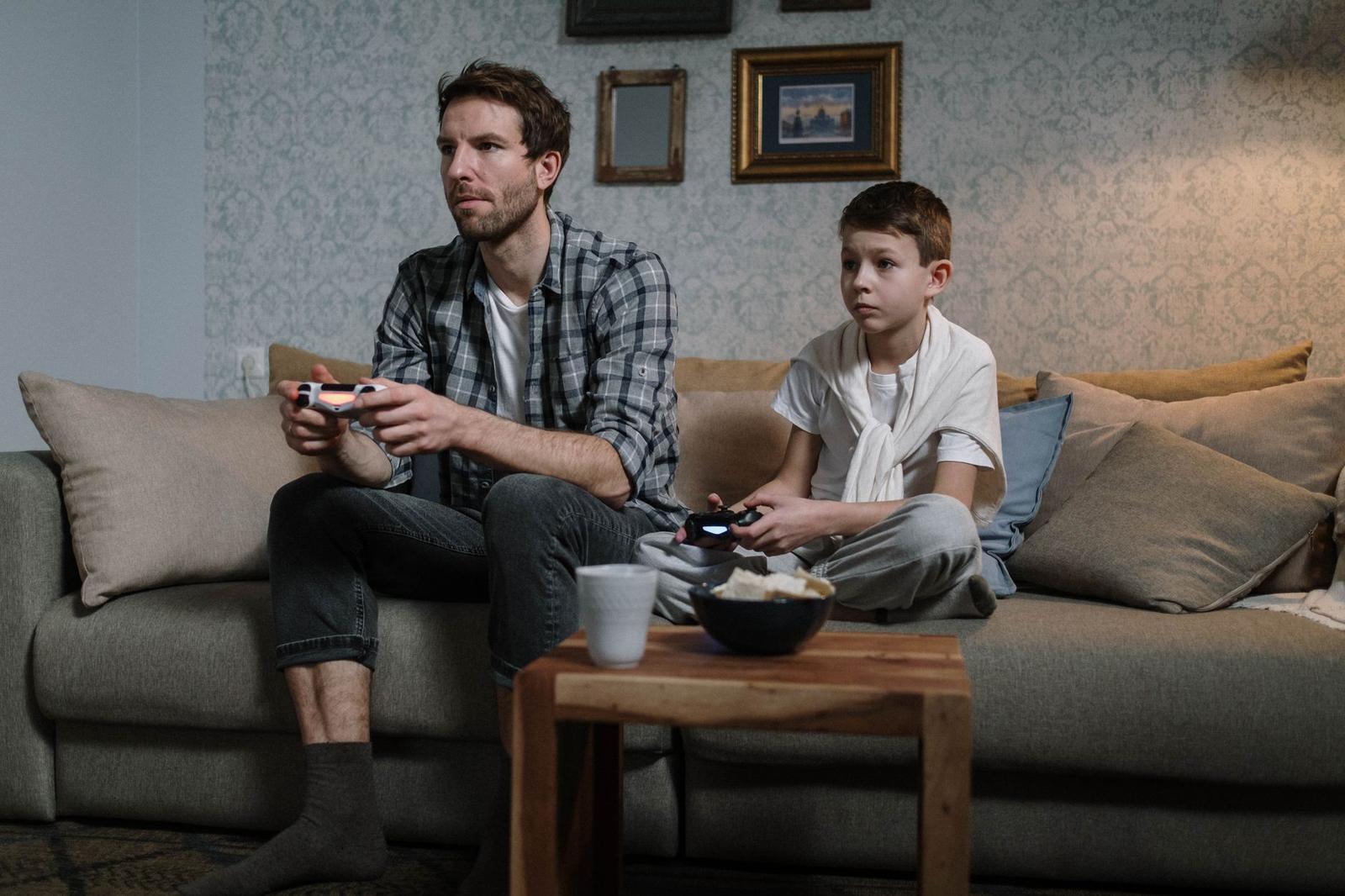
Shared devices and subscription charges
If your child borrows your phone or tablet, the family settings on their own account will not protect your purchases. Apple’s guidance is that when you let children use your device, you can require a password for every purchase, as noted on its in-app purchases page. Do not share that password, and do not let a device remember it.
Where children in your Family Sharing group have their own devices, the same page recommends Ask to Buy to review and approve their purchase requests. That keeps approval in your hands instead of relying on a password.
The Apple pages we reviewed do not break subscriptions out as a separate topic. A sensible habit is to review the subscription list on your own account and the receipt emails you receive every so often, and to cancel anything nobody uses.
What should you tell your child?
Settings work best alongside a plain conversation about real money. Explain that in-game coins and packs cost actual cash, and that asking first is a house rule, not a punishment.
- Agree that every purchase request goes through you.
- Decide together whether any spending is allowed, such as pocket money for a single add-on.
- Ask them to tell you at once if they tap something by mistake.
If you are choosing new titles, our list of best family video games is a good place to start. And if spending comes alongside other worries about play, read about the signs of gaming addiction in children.
Frequently asked questions
Do I need Family Sharing to block purchases?
Show answer
For the approval tools described here, yes: Apple’s guidance begins with Family Sharing and a Child Account. Blocking in-app purchases itself is done in Screen Time, which has to be turned on first.
Will my child still be able to play a game if I block in-app purchases?
Show answer
Blocking affects buying, not playing. The game stays on the device, but anything sold inside it through the App Store should be refused.
Is Ask to Buy enough on its own?
Show answer
It puts every eligible request in front of you, which is strong protection if you read each one. If you want zero chance of an accidental approval, add the in-app purchase block as well.
What about consoles, Android tablets and PC games?
Show answer
The steps in this guide cover Apple devices only. Check the parental control help pages of your console or device maker for their purchase approval and spending limit options.